Watch a walkthrough
Create and Review Customer
Add a customer and review their history before you dispatch.
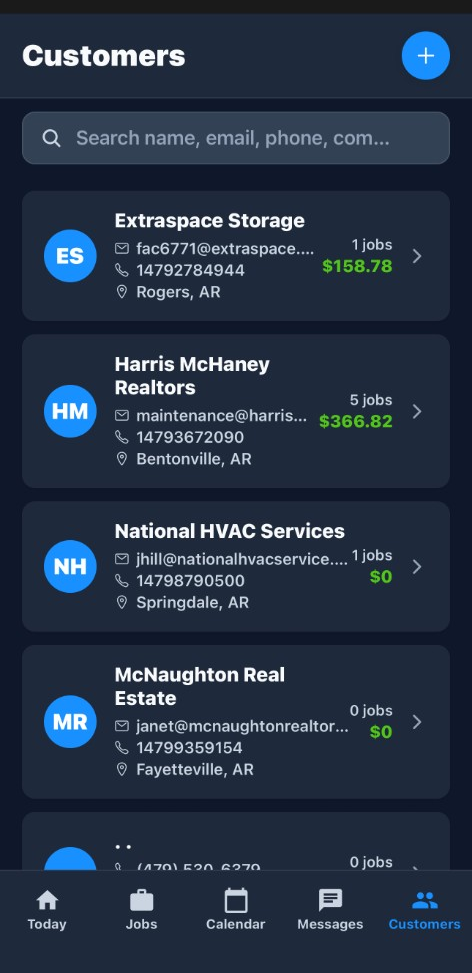
The Customers page (/customers) is your CRM hub. Each customer record holds contacts, addresses, billing terms, and links to jobs, estimates, and invoices. Use merge when duplicate records were created by mistake. A plumbing office creates "Maria Alvarez" from New Customer while she is on the phone: residential, mobile number, service address.
Left menu: Customers to /customers - Create: New Customer on the list. Search and sort the customer list; filter by type, status, and other list filters. Create customers in a modal from the list or on the dedicated create page. Edit customer profile, contacts, addresses, and billing settings. Merge one customer into another (from the customer detail Actions menu). Delete customers you no longer need. View KPI tiles and open individual customer records for full history. For commercial accounts, company name and primary contact fields help downstream estimates and invoices. Choose Residential or Commercial and fill required fields (name, phone, email, address as needed). Add contacts and service addresses if applicable. Save, you can open the new record from the list or continue in the detail view. Open the customer from the list or go to /customers/:id. /customers step 5 is Create a customer.
Overview
The Customers page (
/customers) is your CRM hub. Each customer record holds contacts, addresses, billing terms, and links to jobs, estimates, and invoices. Use merge when duplicate records were created by mistake.Related walkthrough on this page: create and review a customer.
How to access
- Left menu: Customers →
/customers - Create: New Customer on the list, or
/customers/create - Edit: row actions or
/customers/edit/:id - Detail: click a row →
/customers/:id
Requires the
customers:view permission (and create/update/delete permissions for those actions).How do you search and sort the customer list; filter by type, status, and other list filters?
Search and sort the customer list; filter by type, status, and other list filters.
- Search and sort the customer list; filter by type, status, and other list filters.
- Create customers in a modal from the list or on the dedicated create page.
- Edit customer profile, contacts, addresses, and billing settings.
- Merge one customer into another (from the customer detail Actions menu).
- Delete customers you no longer need.
- View KPI tiles and open individual customer records for full history.
Prerequisites
customers:viewto open the list;customers:create,customers:update, orcustomers:deletefor mutating actions.- For commercial accounts, company name and primary contact fields help downstream estimates and invoices.
Step-by-step
Create a customer
- Go to Customers (
/customers). - Click New Customer.
- Choose Residential or Commercial and fill required fields (name, phone, email, address as needed).
- Add contacts and service addresses if applicable.
- Save — you can open the new record from the list or continue in the detail view.
Edit a customer
- Open the customer from the list or go to
/customers/:id. - Click Edit (or use Actions → Edit).
- Update fields and save.
For recurring invoice send-day overrides (optional), expand Advanced at the bottom of the edit form. Below Payment Terms, set Recurring Invoice Send Day (Month) and/or (Week) when recurring invoices are enabled for your business. See Recurring Invoices.
Alternatively, use
/customers/edit/:id as a deep link.Merge duplicate customers
- Open the customer you want to remove (the source).
- Open Actions → Merge into another customer.
- Search for the customer to keep (the target).
- Confirm Merge.
All jobs, estimates, invoices, addresses, and contacts move to the target customer. You are redirected to the surviving record.
Delete a customer
- From the list row menu or customer detail, choose Delete.
- Confirm in the modal.
If the customer has associated jobs, estimates, or invoices, ServiceFlow marks the customer inactive instead of permanently removing the row and related records. Customers with no related activity may be fully deleted.
Example: a duplicate from a phone lead and a portal form
A plumbing office creates "Maria Alvarez" from New Customer while she is on the phone: residential, mobile number, service address, and a note that the water heater is leaking. Later the same person submits a customer form and a second record appears with the same phone and a slightly different spelling.
Open the record you want to remove. Actions → Merge into another customer, search for the record you want to keep, and confirm Merge. Jobs, estimates, invoices, addresses, and contacts move onto the surviving customer, and you land on that record. Merge is not a preview. Check the target name before you confirm, because the source record is the one that goes away.
Delete is different. If Maria already has a job, an estimate, or an invoice, delete does not erase that history. ServiceFlow marks the customer inactive and leaves the related records in place. A customer with no jobs, estimates, or invoices can be fully deleted. Inactive customers drop out of everyday search unless you are looking at status filters that include them. Do not delete a record you still need to invoice.
Commercial customers need a company name and a primary contact so estimates and invoices have a bill-to. Residential customers are the household name plus the service address. Extra contacts and extra service addresses belong on the same customer, not on a second customer, when it is the same account. Recurring send-day overrides sit under Advanced on the edit form, below Payment Terms, and only matter when recurring invoices are turned on for the business.
List Import, Export, Restore deleted, and Manage duplicates are still placeholders. Until those ship, the supported way to combine two live records is merge, and the supported way to retire a customer who already has work is the inactive delete. Someone with
customers:view can open the list but cannot create, edit, or delete without customers:create, customers:update, or customers:delete.Current limitations
- Restore deleted and Manage duplicates under the list Actions menu are labeled COMING SOON and are not available yet.
- Import and Export actions on the list are placeholders without handlers today.
- AI insight preview on the list requires OpenAI configuration (see Customer Detail & Workspace).
Related features
- Customer Detail & Workspace — jobs, invoices, estimates, and tabs on one record
- Recurring Invoices — per-customer send-day overrides in Advanced
- Leads — capture prospects before they become customers
- Intake Flows — guided intake that can create customers and jobs
- Customer Forms — portal forms that feed customer data