Jobs & Scheduling
Jobs Calendar vs Scheduler Columns
Elijah Johnson · Published · Updated · 5 min readA weekly column layout with two display modes: Compact/expanded preference is saved in the browser. A full-page timeline calendar focused on scheduling: - Horizontal technician rows and job blocks (same engine as Scheduler to Timeline). Drag-and-drop reschedule, click-to-create jobs, and technician filtering.
Use this when your team lives under Jobs and wants a calendar without the full scheduler chrome. See Calendar docs for UI details. Traditional overview with Schedule Menu, Unscheduled badge rail, HCP view dropdown (Schedule / Dispatch / Day / Week / Monday. Friday / Month), MAP, and Calendar Settings. Financial summary and the Job Scheduling side panel remain available. Use Color by Employee or Color by Area (ZIP areas from the Schedule Menu). Enable Display US holidays and tile field options under the gear icon. Documentation: Calendar docs (Column View), Timeline docs (shared timeline behavior). On /jobs/calendar - Day/week timeline scheduling with drag-and-drop. Filter technicians, navigate dates, create jobs from open slots. On Scheduler Column View - Toggle Compact vs Expanded weekly layout. Drag jobs between days/technicians where supported. Manage calendar events (meetings, PTO blocks) alongside jobs. Overlaps sit side by side so two jobs at 10:00 on one person are obvious.
Overview
Jobs → Calendar (/jobs/calendar)
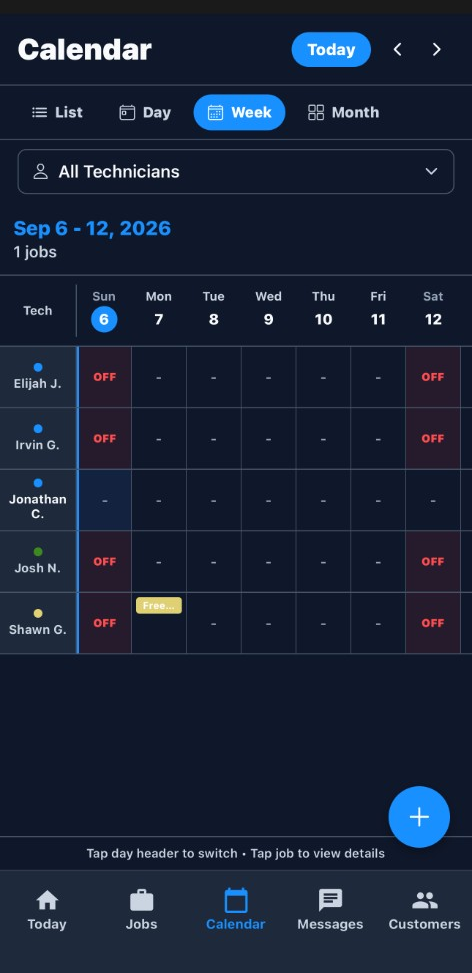
A full-page timeline calendar focused on scheduling:
- Horizontal technician rows and job blocks (same engine as Scheduler → Timeline).
- Day and Week toggles.
- Drag-and-drop reschedule, click-to-create jobs, and technician filtering.
Use this when your team lives under Jobs and wants a calendar without the full scheduler chrome.
Scheduler → Column View (/scheduler?tab=column)
A weekly column layout with two display modes:
| Mode | Description |
|---|---|
| Compact | Accordion-style panels per technician; job cards in a list; availability gaps highlighted |
| Expanded | Time grid (typical business hours); job height reflects duration; overlaps shown side-by-side |
Compact/expanded preference is saved in the browser. See Calendar docs for UI details.
Scheduler → Calendar tab (/scheduler?tab=calendar)
Traditional overview with Schedule Menu, Unscheduled badge rail, HCP view dropdown (Schedule / Dispatch / Day / Week / Monday–Friday / Month), MAP, and Calendar Settings. Financial summary and the Job Scheduling side panel remain available.
Use Color by Employee or Color by Area (ZIP areas from the Schedule Menu). Enable Display US holidays and tile field options under the gear icon.
How to access
| View | Menu path | URL |
|---|---|---|
| Jobs calendar (timeline) | Jobs → Calendar | /jobs/calendar |
| Column view (compact/expanded) | Scheduler → Column View | /scheduler?tab=column |
| Scheduler overview calendar | Scheduler → Calendar View | /scheduler?tab=calendar |
Documentation: Calendar docs (Column View), Timeline docs (shared timeline behavior).
How do you day/week timeline scheduling with drag-and-drop?
Day/week timeline scheduling with drag-and-drop.
On
/jobs/calendar- Day/week timeline scheduling with drag-and-drop.
- Filter technicians, navigate dates, create jobs from open slots.
On Scheduler Column View
- Toggle Compact vs Expanded weekly layout.
- Drag jobs between days/technicians where supported.
- Manage calendar events (meetings, PTO blocks) alongside jobs.
- Click availability gaps to start job creation.
On Scheduler Calendar tab
- Month/week/day overview with job counts and financial rollup.
- Side panel for unscheduled job queue and technician availability.
Prerequisites
- Calendar visibility requires appropriate job permissions.
- Technicians must be configured to show on calendar.
- Business working hours and timezone settings affect gap detection and grid bounds.
Step-by-step
Schedule from Jobs → Calendar
- Go to Jobs → Calendar (
/jobs/calendar). - Choose Day or Week.
- Drag an existing job or click an open slot to create one.
- Confirm reschedule prompts and optional customer notifications.
Use Column View for weekly planning
- Open Scheduler → Column View (
/scheduler?tab=column). - Toggle Compact for a quick crew list or Expanded for time-grid conflict checking.
- Expand/collapse technician panels in Compact mode as needed.
- Move jobs or open gaps to fill the week.
Compare with the Scheduler overview
- Use Scheduler → Calendar View when you need month-level visibility or financial totals for the period.
- Use Jobs → Calendar or Timeline when the priority is moving jobs on a timeline.
Example: picking one screen for the Monday meeting
Three calendars exist because they answer different questions. Jobs → Calendar (
/jobs/calendar) is the timeline: technician rows, day or week, drag a job, click an empty slot to create one. It does not have compact and expanded column modes. Use it when the crew already works inside Jobs and does not want the rest of the scheduler around the grid.Scheduler → Column View (
/scheduler?tab=column) is the weekly plan. Compact is an accordion per technician: job cards in a list and the gaps called out. Expanded is a time grid over typical business hours. Block height is duration. Overlaps sit side by side so two jobs at 10:00 on one person are obvious. The compact or expanded choice is stored in that browser. Drag between days and technicians where the view supports it. Calendar events such as meetings and PTO sit next to jobs so you do not book a tune-up over a day off. Click a gap to start a job.Scheduler → Calendar (
/scheduler?tab=calendar) is the overview: Schedule Menu, Unscheduled badge, the view dropdown (Schedule, Dispatch, Day, Week, Monday–Friday, Month), MAP, and the gear for Calendar Settings. This is the place for a month count and the financial summary, and for the Job Scheduling side panel. Color by employee or by ZIP area. US holidays and tile fields are the gear icon, not a separate page.Working hours and timezone in business settings decide where the grid starts and where a gap is real. A technician without Show on Calendar is missing from all three. Job permission is what lets someone open the page and move work. On a phone, the grid is for reading. Do precise moves on a desktop, or open the job.
Teams should pick one daily screen and keep the others for exceptions. Using all three in one standup is what makes the product feel like it has three calendars. It has one set of jobs shown three ways.
Current limitations
- Jobs → Calendar does not include the Column View compact/expanded modes—that layout lives on the Scheduler Column tab only.
- Three calendar entry points can feel redundant; teams often standardize on one primary view for daily standups.
- Mobile layouts prioritize readability over dense grid editing.
Related features