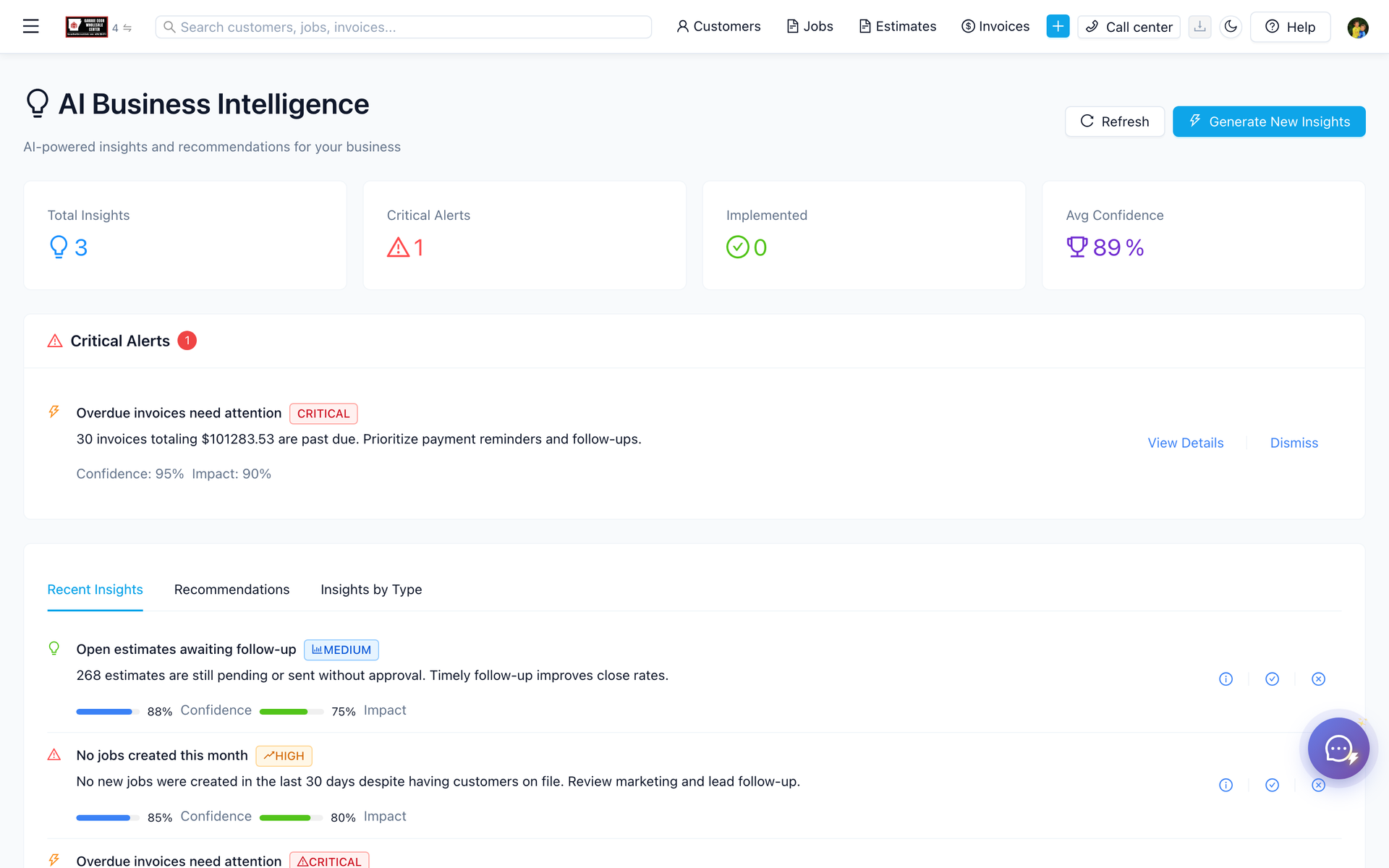
The dashboard is your home for KPI widgets and shortcuts. Widgets for jobs, revenue, and pipeline can be pinned, reordered, and saved when the layout control is shown. Those widgets are reports on data you already entered. The floating AI button opens chat when OpenAI is enabled.
Dashboard, Dashboard (/dashboard) from main menu - AI chat, floating chat button (bottom corner) when enabled. Pin and arrange dashboard widgets (jobs, revenue, pipeline, per your layout). Open AI chat for natural-language questions about workflows (feature availability depends on OpenAI config). Use quick actions suggested in chat UI where implemented. View business intelligence panels if your account includes them on dashboard. OpenAI Setup Guide for full AI chat (informational widgets may work without AI). Dashboard widget permissions for your role. Dashboard to Customize or edit layout control if shown. “How do I send a deposit link?”). Follow links or steps in the response. Expand to fullscreen for longer sessions. Use dashboard for totals; drill into records for AI Entity Insights on specific customers or jobs. Config-gated AI chat, placeholder or disabled when OpenAI off. /dashboard step 4 is Customize dashboard.
Overview
The dashboard is your home for KPI widgets and shortcuts; the AI chat assistant (floating FAB or panel) answers business questions and helps navigate tasks when OpenAI is enabled.
How to access
- Dashboard — Dashboard (
/dashboard) from main menu - AI chat — floating chat button (bottom corner) when enabled; fullscreen shell on expand
- Dashboard AI widgets — custom widgets on dashboard layout where configured
How do you pin and arrange dashboard widgets (jobs, revenue, pipeline—per your layout)?
Pin and arrange dashboard widgets (jobs, revenue, pipeline—per your layout).
- Pin and arrange dashboard widgets (jobs, revenue, pipeline—per your layout).
- Open AI chat for natural-language questions about workflows (feature availability depends on OpenAI config).
- Use quick actions suggested in chat UI where implemented.
- View business intelligence panels if your account includes them on dashboard.
Prerequisites
- Authenticated ServiceFlow user.
- OpenAI Setup Guide for full AI chat (informational widgets may work without AI).
- Dashboard widget permissions for your role.
Step-by-step
Customize dashboard
- Dashboard → Customize or edit layout control if shown.
- Add/remove/reorder widgets.
- Save layout.
Use AI chat
- Click floating AI button.
- Ask a question (e.g. “How do I send a deposit link?”).
- Follow links or steps in the response.
- Expand to fullscreen for longer sessions.
Pair with entity insights
- Use dashboard for totals; drill into records for AI Entity Insights on specific customers or jobs.
Current limitations
- Config-gated AI chat—placeholder or disabled when OpenAI off.
- Chat may not execute mutations (create invoice)—guidance oriented, not full agent automation.
- Widget library varies by plan/permissions—not all KPIs available to technicians.
- No natural-language SQL across full database (see Data Explorer for queries).
Roadmap
- Agent actions with confirmation (create lead, draft estimate).
- Role-specific dashboard templates by trade.
- Voice input on mobile dashboard.
Example: the home screen versus the chat button
/dashboard is the signed-in home. Widgets for jobs, revenue, and pipeline can be pinned, reordered, and saved when the layout control is shown. Those widgets are reports on data you already entered. They are not a second scheduler.
The floating AI button opens chat when OpenAI is enabled. Questions are about workflows. The chat does not approve an estimate or clock someone out unless a quick action on that screen is actually implemented. Expand is a larger shell of the same chat. Without OpenAI, informational widgets can still load and the chat stays limited or tells you to connect the key. Per-feature spend caps inside ServiceFlow are not this screen. Usage is billed on the OpenAI account.
A technician sees the widgets their role allows. Customizing the layout does not change another user's browser until that user saves their own layout, if layouts are per user on your deployment. Business-intelligence panels appear only when the account includes them.
Related features