Onboarding & Navigation is the workflow at /onboarding. ServiceFlow Pro includes a first-run onboarding wizard at /onboarding and Navigation Settings under Settings to Navigation Settings (/settings/navigation). Together they help new businesses configure profile basics and control which menu items appear in the main sidebar and the Settings sidebar.
Open Settings from the left sidebar (admin users). Navigation Settings requires an Admin or Super Admin role. See a welcome screen with trial countdown and a summary of setup steps. Launch the Setup Wizard or Skip for Now to go to the dashboard. Complete wizard steps: Welcome to Business Setup to Team Setup to Preferences to Complete. Save business profile fields, invite up to two team members, and set preferences during the wizard. Navigation Settings (/settings/navigation) - Reorder menu items with drag-and-drop on Main Navigation and Settings Navigation tabs. Show or hide built-in menu entries per navigation area. Add custom links (label, icon, URL) to main nav, settings nav, or both. Reset either navigation list to factory defaults. A ServiceFlow Pro account with access to the web app. Team invites in onboarding require valid email addresses for each invitee. /onboarding step 7 is Run the onboarding wizard.
Overview
ServiceFlow Pro includes a first-run onboarding wizard at
/onboarding and Navigation Settings under Settings → Navigation Settings (/settings/navigation). Together they help new businesses configure profile basics and control which menu items appear in the main sidebar and the Settings sidebar.How to access
| Area | Menu path | Route |
|---|---|---|
| Onboarding wizard | Direct URL after signup (or bookmark) | /onboarding |
| Navigation settings | Settings → Navigation Settings | /settings/navigation |
Open Settings from the left sidebar (admin users). Navigation Settings requires an Admin or Super Admin role.
How do you see a welcome screen with trial countdown and a summary of setup steps?
See a welcome screen with trial countdown and a summary of setup steps.
Onboarding (
/onboarding)- See a welcome screen with trial countdown and a summary of setup steps.
- Launch the Setup Wizard or Skip for Now to go to the dashboard.
- Complete wizard steps: Welcome → Business Setup → Team Setup → Preferences → Complete.
- Save business profile fields, invite up to two team members, and set preferences during the wizard.
Navigation Settings (
/settings/navigation)- Reorder menu items with drag-and-drop on Main Navigation and Settings Navigation tabs.
- Show or hide built-in menu entries per navigation area.
- Add custom links (label, icon, URL) to main nav, settings nav, or both.
- Reset either navigation list to factory defaults.
Prerequisites
- A ServiceFlow Pro account with access to the web app.
- Admin permissions for Navigation Settings.
- Team invites in onboarding require valid email addresses for each invitee.
Step-by-step
Run the onboarding wizard
- Go to
/onboarding(often shown after first login). - Click Start Setup Wizard.
- Work through each step; use Next / Back as needed.
- On Business Setup, enter company name, contact info, industry, and address details.
- On Team Setup, add optional invites (name, email, role).
- On Preferences, set currency, business hours, and notification preferences.
- Finish on Complete — you are redirected to
/dashboard.
To defer setup, click Skip for Now on the welcome screen or use skip actions inside the wizard.
Customize the sidebar
- Go to Settings → Navigation Settings.
- Choose Main Navigation or Settings Navigation.
- Drag items to reorder; toggle the eye icon to hide an item without deleting it.
- Click Add Custom Link to add an external or internal URL.
- Use Reset to Defaults if you want to undo custom ordering and visibility.
Changes save automatically when you reorder or toggle visibility.
Example: a two-person HVAC shop on day one
A new owner signs up and lands on
/onboarding. The welcome screen shows the trial countdown and the setup steps still open. They click Start Setup Wizard instead of Skip for Now.On Business Setup they enter the company name, a dispatch phone, the industry, and the shop address. That address is the one later screens use when a job does not yet have its own service address. On Team Setup they invite the lead technician and the office coordinator. The wizard accepts up to two invites, each with a name, email, and role. A bad email fails that invite; the rest of the wizard still finishes. On Preferences they set currency, weekday business hours, and whether the office wants notifications. Complete sends them to
/dashboard.The technician should not see Settings. An Admin opens Settings → Navigation Settings, stays on Main Navigation, and hides items the field role does not use. Dragging an item changes its order. The eye icon hides it without deleting it. They add one custom link labeled "Parts counter" that points at an internal price-book path. Settings Navigation is a separate list, so hiding a main-menu item does not hide the same area inside Settings. Reset to Defaults restores factory order and visibility for the tab you are on. It does not delete custom links you still want; review those before you reset if you added several.
If the owner clicks Skip for Now, the dashboard still loads and
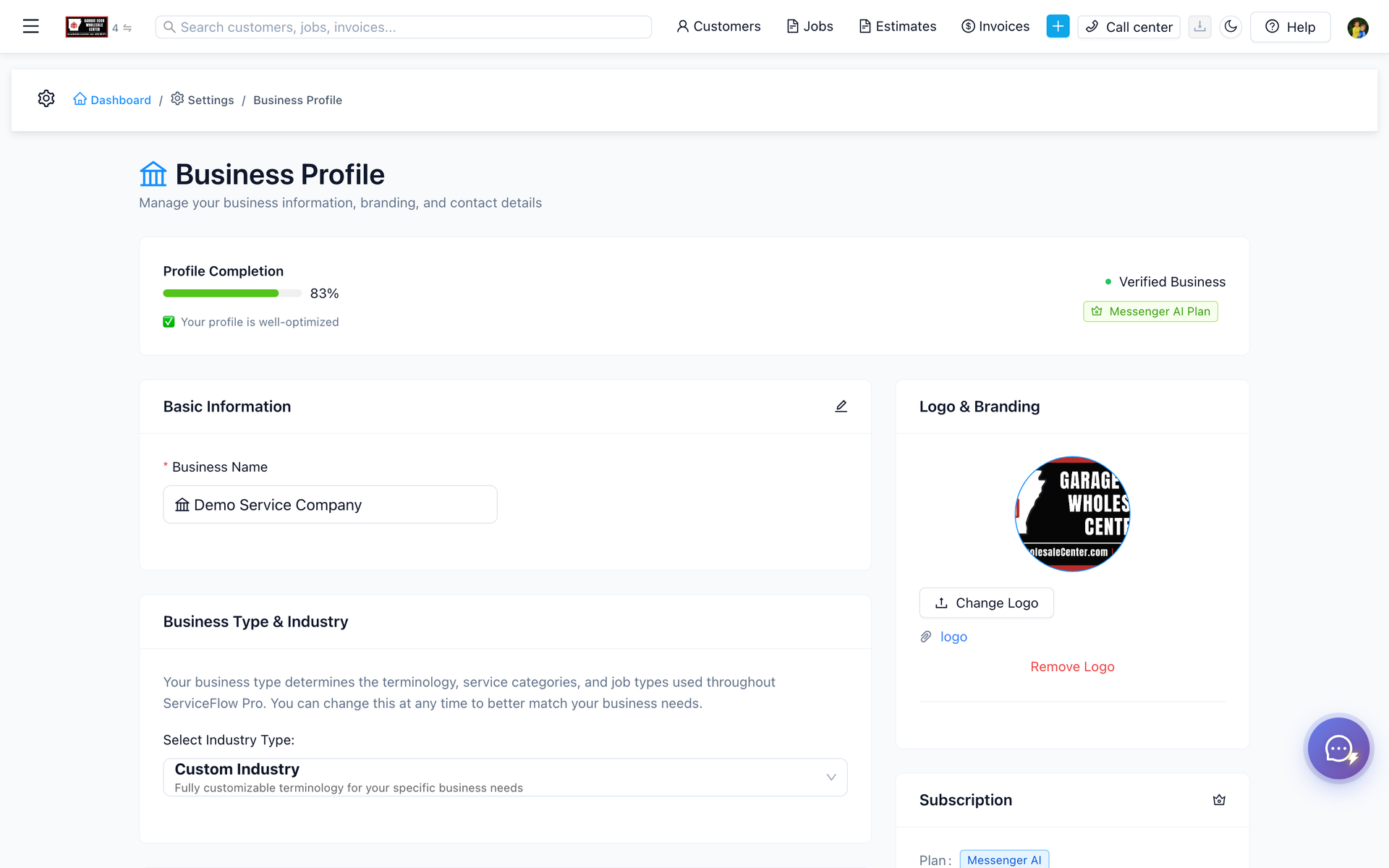
/onboarding remains available. Business name, hours, and currency can also be edited later under Settings → Business Profile (/settings/profile). Navigation changes are not a substitute for permissions. A hidden menu item stays reachable by its URL, and a custom link does not add a permission check of its own. The target page still enforces whatever role check it already has.Trial days on the welcome screen are calculated in the browser for display. Billing status, plan, and the real trial end date live with the account admin, not in the sidebar order.
Current limitations
- Onboarding trial day count is calculated client-side for display; confirm billing/trial status with your account admin if needed.
- Custom nav links open as configured; they do not inherit role-based permission checks unless the target route already enforces them.
- Hidden nav items remain reachable by direct URL if the user knows the path.
Related features
- Customer Management — start adding customers after setup
- Jobs List & Detail — core workflow once navigation is configured
- General business profile fields also live under Settings → Business Profile (
/settings/profile)