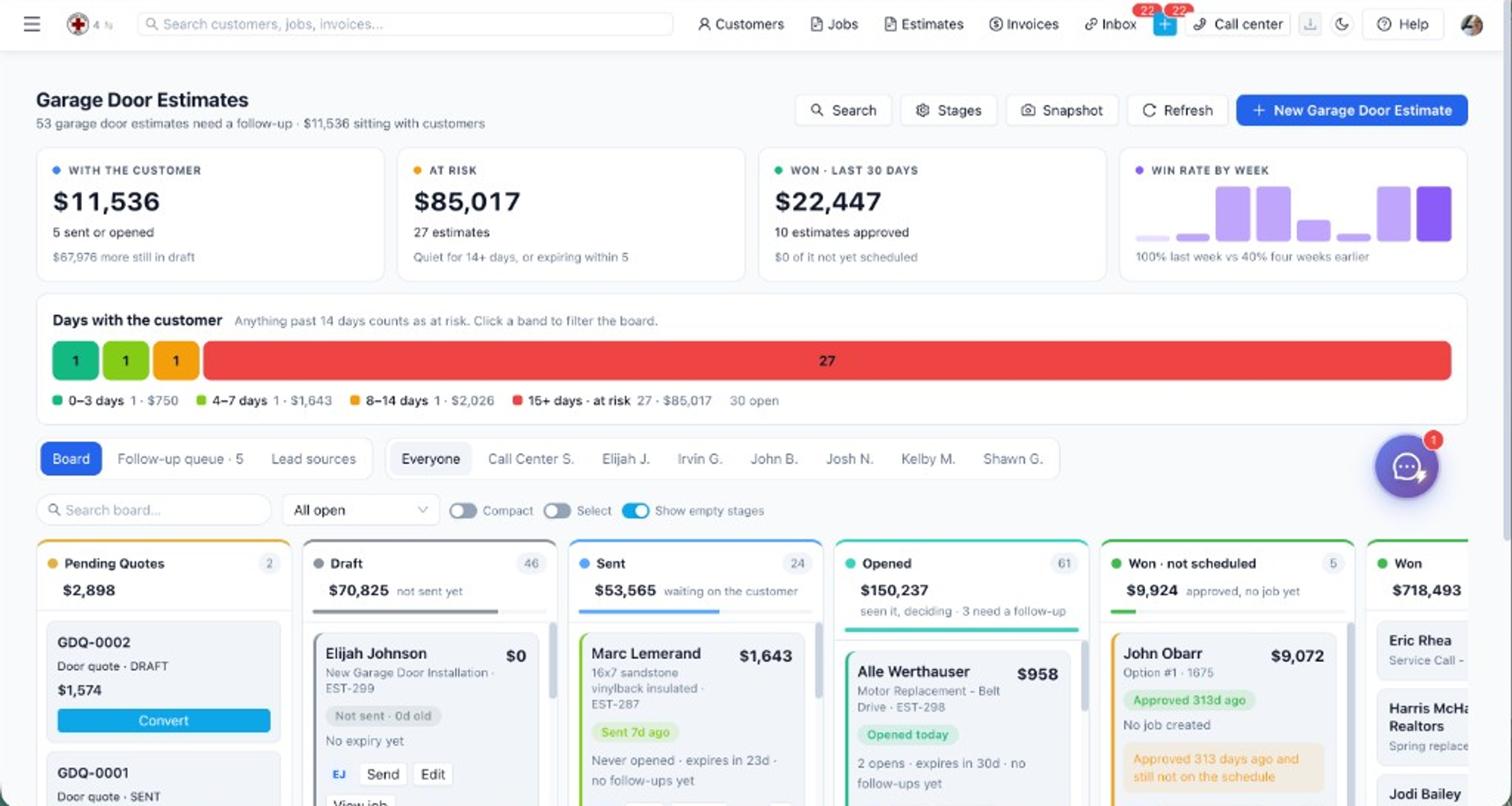
Watch a walkthrough
Create and Update Garage Door Estimate
Build and revise a garage door estimate with options and pricing.
The Estimate Builder at /estimates/new and /estimates/:id/edit is the primary create and edit flow for estimates. Open /estimates/new, or /estimates/:id/edit for a draft you already saved. A customerId or jobId on the URL locks the starting context the same way a job opened from a customer does.
Estimates to New Estimate to /estimates/new - Estimates to open an estimate to Edit to /estimates/:id/edit. From a job or customer via query params (?customerId=, ?jobId=) Requires estimates:create for new estimates and estimates:update for edit. Select or create a customer and service address. Enter job description; use @mentions for customers, technicians, and price book items (@pricebook adds a line immediately). Manage multiple options (columns) with independent line items and subtotals. Add lines from price book search, manual entry, or templates. Set tax, discount, validity date, terms, and PDF-facing copy (materials included, exclusions, change-order policy). Choose deposit : none, 25%, 50%, or custom amount tied to the active option subtotal. Run stock check for inventory-backed components before save. Save draft, preview totals, and send the estimate. Send via email + text checkbox on save, default checked/unchecked per Send to Customer (Default).
Overview
The Estimate Builder at
/estimates/new and /estimates/:id/edit is the primary create and edit flow for estimates. It supports multiple priced options the customer compares on the PDF, line items from your price book, templates, deposit presets, and an integrated AI Assistant for line items and form fields on new estimates only.Related walkthrough on this page: create and update a garage door estimate.
How to access
- Estimates → New Estimate →
/estimates/new - Estimates → open an estimate → Edit →
/estimates/:id/edit - From a job or customer via query params (
?customerId=,?jobId=)
Requires
estimates:create for new estimates and estimates:update for edit.How do you select or create a customer and service address?
Select or create a customer and service address.
- Select or create a customer and service address.
- Enter job description; use @mentions for customers, technicians, and price book items (
@pricebookadds a line immediately). - Manage multiple options (columns) with independent line items and subtotals.
- Add lines from price book search, manual entry, or templates.
- Set tax, discount, validity date, terms, and PDF-facing copy (materials included, exclusions, change-order policy).
- Choose deposit: none, 25%, 50%, or custom amount tied to the active option subtotal.
- Run stock check for inventory-backed components before save.
- Save draft, preview totals, and send the estimate.
- Send via email + text checkbox on save—default checked/unchecked per Send to Customer (Default).
- AI Assistant panel in Pricing & line items: auto-fills title, project type, duration, payment terms, deposit, and valid-until; suggests line items with auto-apply when empty or merge when rows exist. See AI-Assisted Estimating.
Prerequisites
estimates:createpermission.- Price book populated for fast item search (optional but recommended).
- Tax rates under Settings → Tax Rates when charging tax.
- OpenAI under Settings → Integrations for best AI Assistant results (optional—rules fallback works without it).
- Stripe + email/SMS for deposit collection after approval — see Estimate Deposits.
Step-by-step
Build a three-option estimate
- Go to
/estimates/new. - Pick the customer and verify the service address.
- Add an option (e.g. Good, Better, Best) — each option has its own line items.
- Search the price book or add manual lines per option.
- Set the default option the customer sees first on the PDF.
- Review totals — tax and discount modes follow business settings.
- Under estimate details, set Require deposit (none / 25% / 50% / custom).
- Save draft or Send when ready.
Apply a template
- In the builder, open Templates (when available on your layout).
- Select a saved estimate template.
- Adjust lines and options, then save.
Use AI Assistant
- In Step 1, scroll to Pricing & line items.
- Type a detailed job description; use
@pricebookto pin known items. - Review the AI Assistant panel: insights, suggested form fields, and line items.
- If the table is empty, suggestions apply automatically; otherwise click Apply suggestions to merge.
- Move lines between Good/Better/Best options as needed.
- Full details: AI-Assisted Estimating.
Example: Good, Better, and Best on one compressor quote
Open
/estimates/new, or /estimates/:id/edit for a draft you already saved. estimates:create is required for the first save. estimates:update is required to change it. A customerId or jobId on the URL locks the starting context the same way a job opened from a customer does.The description field takes @mentions.
@customer links the record. @technician references a technician. @pricebook searches items and, on an estimate, drops a line as soon as you pick one. Options are separate columns. Each option has its own lines and its own subtotal. The customer compares them on the PDF. Tax, discount, valid-until, terms, materials-included, exclusions, and change-order text are the PDF-facing fields. Deposit is none, 25 percent, 50 percent, or a custom amount of the active option's subtotal. Stock check looks at inventory-backed components before save. It does not order parts.Send via email + text follows the business default. Uncheck it to save a draft silently. AI Assistant on new estimates can fill title, project type, duration, payment terms, deposit, and valid-until, and it can suggest lines. Empty tables take the suggestions automatically. Tables that already have rows need Apply suggestions so you do not wipe a hand-built option. The panel is hidden on edit. OpenAI makes the suggestions better. With no key, keyword rules still run and the panel says so. Price book search works either way.
Deposit collection after approval is not this screen. Stripe, or the active processor, plus email or SMS, is the deposit guide. Tax only calculates when tax rates exist. A three-option quote with no customer cannot be sent, because the PDF and the text need somewhere to go.
Current limitations
- AI Assistant appears on new estimates only (
/estimates/new), not on edit. - Without OpenAI, AI Assistant uses keyword rules fallback (less flexible than full AI).
- Stock check reflects current inventory; it does not reserve parts.
- Optional line-item checkboxes on the customer PDF follow estimate option design — distinct from price book optional components (see Price Book Components).
- Garage door visual quote flows use a separate tool when your industry is garage door — see Garage Door Quote Builder.
- HVAC Comfort Proposals use a separate catalog and presentation flow when your industry is HVAC — see HVAC Comfort Proposals.
Related features
- Estimates Overview — list, detail, send, convert
- Estimate Deposits — collect deposit after approval
- AI-Assisted Estimating — @mentions, form auto-fill, G/B/B suggestions
- Garage Door Quote Builder — visual quotes for garage door businesses
- HVAC Comfort Proposals — Good/Better/Best presentations for HVAC
- HVAC Catalog — equipment and labor for Comfort Proposals
- Price Book Components — bundled parts on price book items
- Send to Customer (Default) — default notify checkbox on save