Watch a walkthrough
Create and Update Garage Door Estimate
Build and revise a garage door estimate with options and pricing.
Estimates Overview is the workflow at /estimates. Open /estimates/:id for detail actions (send, approve, PDF, convert to job, deposits). Use /estimates/new for the multi-option builder or legacy form flows. /estimates is the list: search, filters, sort, and the KPI tiles.
Requires estimates:view (and create/update/delete for mutating actions). Search, filter, and sort estimates; view KPI summary tiles. Create estimates via Estimate Builder at /estimates/new. Send estimates by email/SMS when communications are configured. Send to customer checkbox on create/save (default from Send to Customer (Default)). Track statuses: draft, sent, viewed, approved, declined, voided, converted. Approve or decline from detail (staff-side). Configure deposit required and amount on the estimate (collection is separate, see Estimate Deposits). Resend or send deposit invoice from detail Actions when deposits apply. At least one customer (or create inline from the builder). Price book items (optional) for fast line entry. Email/SMS provider configured under Settings to Integrations to send estimates. Stripe (or active payment processor) for deposit payment links. Go to Estimates to New Estimate (/estimates/new). Select customer, job description, and line items (see Estimate Builder). /estimates step 6 is Create and send an estimate.
Overview
Estimates (
/estimates) holds all proposals. Open /estimates/:id for detail actions (send, approve, PDF, convert to job, deposits). Use /estimates/new for the multi-option builder or legacy form flows.Related walkthrough on this page: create and update a garage door estimate.
How to access
| Area | Menu path | Route |
|---|---|---|
| Estimate list | Estimates | /estimates |
| New estimate | New Estimate | /estimates/new |
| Estimate detail | Click a row | /estimates/:id |
| Edit estimate | Detail actions | /estimates/:id/edit |
| PDF preview | Detail / send flow | /estimates/:id/pdf |
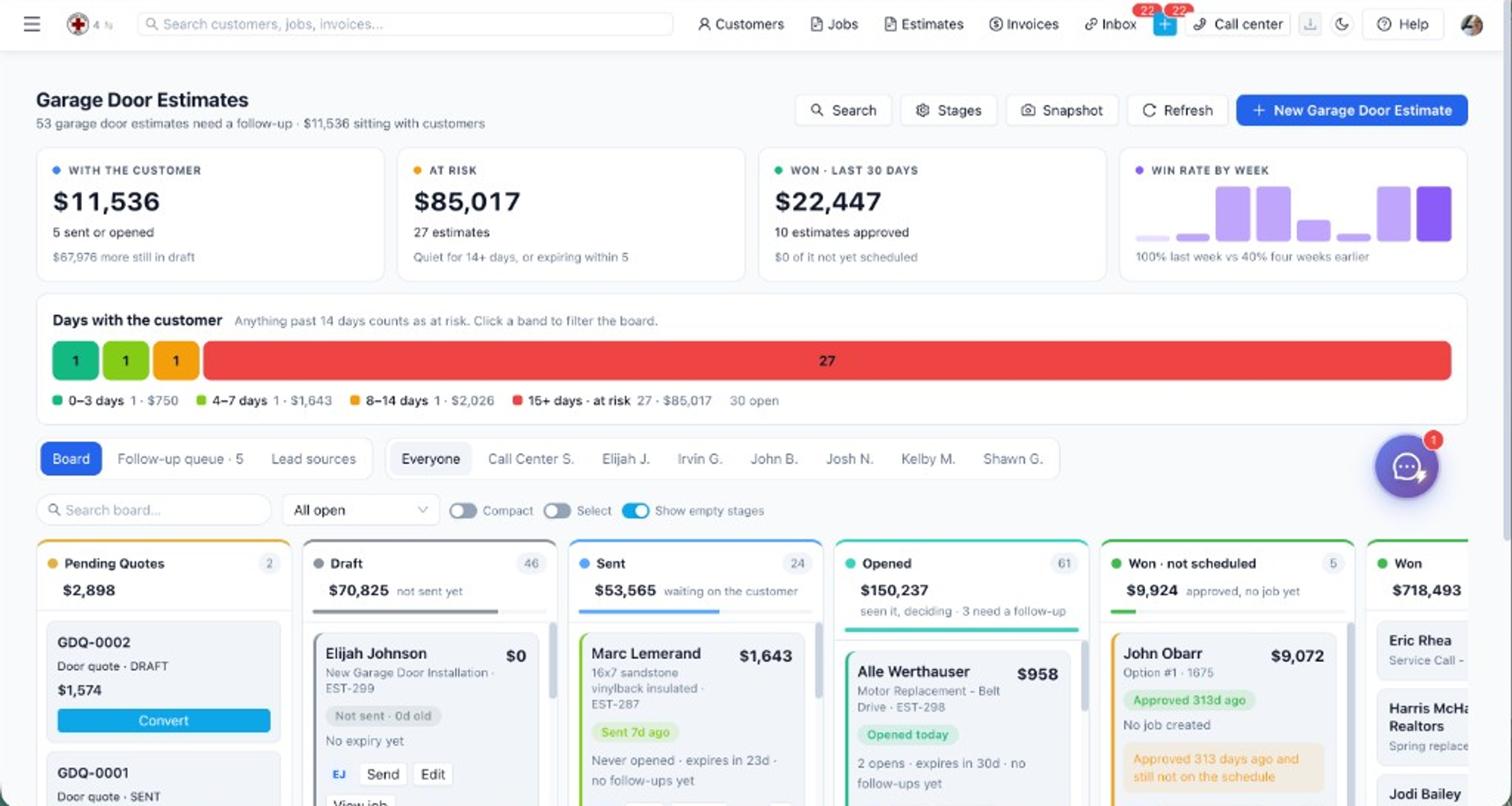
| Pipeline board | List toggle Board | /estimates/board |
Requires
estimates:view (and create/update/delete for mutating actions).How do you search, filter, and sort estimates; view KPI summary tiles?
Search, filter, and sort estimates; view KPI summary tiles.
- Search, filter, and sort estimates; view KPI summary tiles.
- Create estimates via Estimate Builder at
/estimates/new. - Send estimates by email/SMS when communications are configured.
- Send to customer checkbox on create/save (default from Send to Customer (Default)).
- Track statuses: draft, sent, viewed, approved, declined, voided, converted.
- Approve or decline from detail (staff-side).
- Convert to job after approval.
- Preview customer-facing PDF at
/estimates/:id/pdf. - Configure deposit required and amount on the estimate (collection is separate — see Estimate Deposits).
- Resend or send deposit invoice from detail Actions when deposits apply.
Prerequisites
- At least one customer (or create inline from the builder).
- Price book items (optional) for fast line entry.
- Email/SMS provider configured under Settings → Integrations to send estimates.
- Stripe (or active payment processor) for deposit payment links.
Step-by-step
Create and send an estimate
- Go to Estimates → New Estimate (
/estimates/new). - Select customer, job description, and line items (see Estimate Builder).
- Save as draft or proceed to send.
- On save, use Send to customer (or Send via email + text in the builder) to deliver immediately—or uncheck to save without sending.
- Open
/estimates/:id→ Send — choose recipients and channel if you saved without notifying. - Track status as the customer views or responds.
Approve and convert to a job
- Open the estimate detail page.
- When the customer approves (portal or staff approval action), status becomes approved.
- Choose Convert to Job — ServiceFlow creates a linked job and marks the estimate converted.
- Open the new job from the success link or customer record.
Void an estimate
- On detail, use Void from Actions.
- Voided estimates cannot be moved on the pipeline board.
Example: a draft that should not email the customer yet
/estimates is the list: search, filters, sort, and the KPI tiles. /estimates/new is the builder. /estimates/:id is where you send, approve, open the PDF, convert to a job, and deal with deposits. Status values you will actually see are draft, sent, viewed, approved, declined, voided, and converted. estimates:view opens the list. Create, update, and delete are separate permissions.Send to customer on create follows the business default. Uncheck it when the estimator is still pricing and the homeowner should not get a text. Sending for real needs the email or SMS integration under Settings → Integrations. Without that, the record can still be saved and the PDF can still be opened at
/estimates/:id/pdf. The customer is not notified.Staff can Approve or Decline on the detail page. Convert to job comes after approval. Conversion creates the job context. It does not by itself pick a technician and a clock time. Schedule that on the job. Deposit required and the amount are stored on the estimate. Collecting the money is the deposit guide: a deposit invoice and a payment link, which need the active card processor. A deposit setting with no Stripe (or whichever processor is active) records the requirement and cannot charge the card.
The customer has to exist, or you create them in the builder. Price book lines are optional. Tax rates apply when they are configured under tax settings. Voided is not the same as declined. Converted means a job was created from it. Do not convert twice and expect two independent sold jobs without checking the first job still exists.
Current limitations
- Customer portal acceptance depends on portal and notification configuration.
- Stock warnings in the builder reflect inventory at save time; receiving POs later does not auto-update sent estimates.
- AI assistant panels require OpenAI — see AI-Assisted Estimating.
Edge cases before you hit send
Viewed means the customer opened the proposal. It does not mean they accepted a price. Decline keeps the estimate for the record and blocks convert until you decide to revise it into a new draft or a new estimate. Void is the "this should not have existed" path. Converted should point at one job. If convert is clicked again, confirm you are not creating a second job for the same sold scope.
The PDF at
/estimates/:id/pdf is the customer-facing document. Internal notes that are not on the PDF fields (materials included, exclusions, change-order policy, terms) do not appear there. Put customer-facing limits in those fields. Deposit required shows on that PDF. The payment itself is a deposit invoice, documented separately, and it needs a processor and a message channel.KPI tiles on the list are summaries of the estimates you can view. They are not cash received. A large approved total can still have an unpaid deposit.
Related features
- Estimate Pipeline Board — Kanban by estimate status
- Estimate Builder — multi-option Good/Better/Best flow
- Estimate Deposits — Stripe deposit invoices
- Jobs List & Detail — conversion target
- Price Book Components — bundled line items
- Send to Customer (Default) — default notify checkbox on web