Watch a walkthrough
Complete Job, Invoice, and Record Payment
Finish the job, send the invoice, and take payment in one flow.
Create and Dispatch a Garage Door Job
Create a garage door job and get it on the right tech’s schedule.
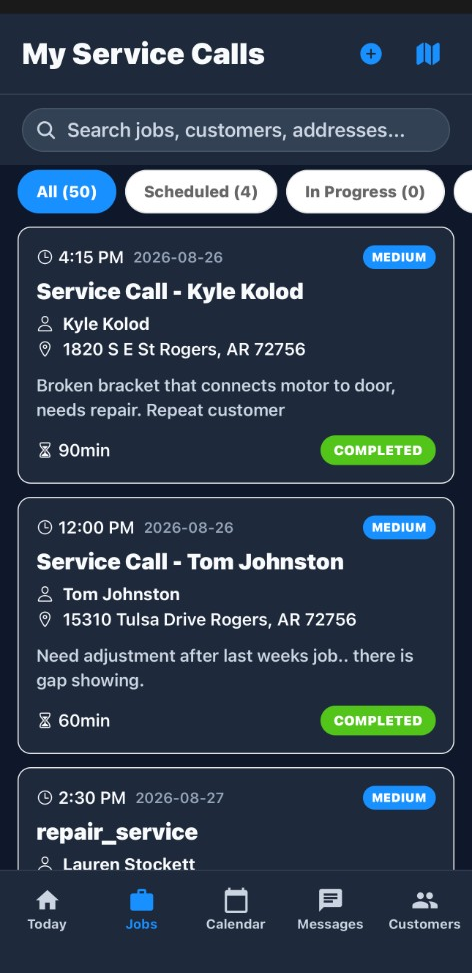
Jobs (/jobs) is the operational center for scheduled work. Create jobs from the list, customer detail, estimates, or /jobs/new. Each job has a detail page at /jobs/:id with status, scheduling, notes, and related billing. The office approves an estimate and opens New Job with estimateId and customerId on /jobs/new.
Requires jobs:view (and create/update/delete for mutating actions). Search, filter, and sort the job list; switch to Board or Calendar views. Open New Job, renders the new job modal as a full page at /jobs/new. Prefill new jobs via query params (customerId, estimateId, scheduledDate, assignedTechnicianId, etc.). Assign primary and additional technicians, vehicles, and schedule date/time. Set job type, priority, source, recurring options, and on-site notes. Send notification to customer checkbox on create and edit, default checked/unchecked per Send to Customer (Default). View and update job status on the detail page. Attach, fill, and complete Service Forms from the Overview tab (certificates, checklists, maintenance logs). Completed PDFs email with the job. Link jobs to customers, estimates, and invoices. AI Assistant on New Job, describe the issue with @mentions; auto-fill service type, priority, duration, quoted price. Technicians configured under team/users settings for assignment. /jobs step 9 is Create a job from the list.
Overview
Jobs (
/jobs) is the operational center for scheduled work. Create jobs from the list, customer detail, estimates, or /jobs/new. Each job has a detail page at /jobs/:id with status, scheduling, notes, and related billing.Related walkthroughs on this page: completing a job through invoice and payment, and creating/dispatching a garage door job.
How to access
| Area | Menu path | Route |
|---|---|---|
| Job list | Jobs | /jobs |
| New job (full page) | New Job on list | /jobs/new |
| Job detail | Click a row | /jobs/:id |
| Board view | List view toggle | /jobs/board |
| Calendar | Jobs calendar | /jobs/calendar |
Requires
jobs:view (and create/update/delete for mutating actions).How do you search, filter, and sort the job list; switch to Board or Calendar views?
Search, filter, and sort the job list; switch to Board or Calendar views.
- Search, filter, and sort the job list; switch to Board or Calendar views.
- Open New Job — renders the new job modal as a full page at
/jobs/new. - Prefill new jobs via query params (
customerId,estimateId,scheduledDate,assignedTechnicianId, etc.). - Assign primary and additional technicians, vehicles, and schedule date/time.
- Set job type, priority, source, recurring options, and on-site notes.
- Send notification to customer checkbox on create and edit—default checked/unchecked per Send to Customer (Default).
- View and update job status on the detail page.
- Attach, fill, and complete Service Forms from the Overview tab (certificates, checklists, maintenance logs). Completed PDFs email with the job.
- Link jobs to customers, estimates, and invoices.
- AI Assistant on New Job — describe the issue with @mentions; auto-fill service type, priority, duration, quoted price, and technician (see AI Draft Assistants).
Prerequisites
- Active customers for customer-linked jobs.
- Technicians configured under team/users settings for assignment.
- Optional: approved estimate to prefill job context via
estimateIdon/jobs/new.
Step-by-step
Create a job from the list
- Go to Jobs → click New Job (
/jobs/new). - Search and select a customer (or arrive with
?customerId=prefilled). - Describe the issue in the @mention field; review AI Assistant suggestions for service type, priority, duration, and quoted price.
- Choose job type, priority, and service address (or accept AI suggestions).
- Use Schedule to pick date, time, and primary technician.
- Enter optional quoted price and expand More for on-site notes.
- Leave Send notification to customer checked to email/text the customer on create, or uncheck to save without notifying (see Send to Customer (Default) to change the business default).
- Submit — you land on
/jobs/:id(or yourreturnUrlif provided).
Create a job from a customer
- Open
/customers/:id. - Click New Job.
- Complete the same modal flow with the customer locked in.
Work a job to completion
- Open
/jobs/:id. - Update status as work progresses (Draft → Scheduled → In Progress → Completed).
- On Overview, use Service Forms to attach a template, fill it, and complete it so the PDF can email with job completion.
- Add notes, photos, and related invoices/estimates from the detail page actions.
Example: an approved estimate that becomes tomorrow's job
The office approves an estimate and opens New Job with
estimateId and customerId on /jobs/new. The customer is already selected. Change stays disabled in that header because the job was started from the customer or the estimate, not from a blank search. They describe the issue in the @mention field. AI Assistant can suggest service type, priority, duration, quoted price, and a technician when that assistant is available. The AI · from price book · soon hint on quoted price means the price-book suggestion is not live. Type the price from the estimate. Manual entry is the price that saves.Schedule sets the date, time, and primary technician. Additional technicians and a vehicle are on the same job when the work needs a helper or a specific truck. Job type, priority, source, recurring options, and on-site notes are part of the record. Send notification to customer defaults from the business setting in the send-to-customer guide. Leave it checked to email or text on create. Uncheck it when you are building the job before the customer should hear about it.
Submit lands on
/jobs/:id. Status moves Draft → Scheduled → In Progress → Completed. Overview is where Service Forms attach. Fill and complete a form there if the job needs a certificate or checklist. The completed PDF can email with the job. Photos, notes, and links to the estimate and invoice stay on this record. List, Board (/jobs/board), and Calendar (/jobs/calendar) are three views of the same jobs. jobs:view opens them. Create, update, and delete need the matching job permissions.Someone who only has customer access can see the customer but cannot open New Job without job create permission. List AI Insights stay empty until OpenAI is configured, the same way they do on Customers. That does not block create, schedule, or complete.
Current limitations
New job modal — partial / preview areas
- Quoted price shows an AI · from price book · soon hint; manual entry works, but AI price-book suggestion is not live.
- Change customer button in the locked-customer header is disabled when opened from a customer context.
- List-level AI Insights preview on Jobs requires OpenAI configuration (same pattern as Customers).
Other list actions labeled COMING SOON in related modules do not block core job create/edit.
Roadmap
- AI-assisted quoted price from price book on new job.
- Deeper job list AI suggestions when OpenAI is connected.
Related features
- Job Pipeline Board — Kanban by status
- Service Forms — certificates and checklists on the Overview tab
- Customer Detail & Workspace — start jobs from a customer
- Estimates Overview — convert approved estimates to jobs
- Scheduler & Dispatch — day-view dispatch (separate guide)
- Send to Customer (Default) — default notify checkbox on create/edit