Reporting & Admin
Install the Technician Mobile Apps
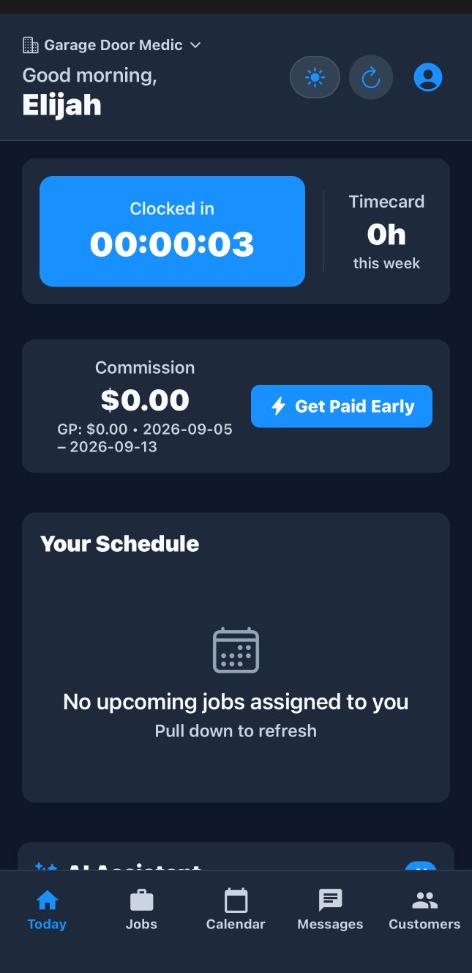
Elijah Johnson · Published · Updated · 4 min readInstall the Technician Mobile Apps is the workflow at /download. ServiceFlow offers mobile apps for field technicians and desktop downloads for office staff who prefer a native shell. Download (/download) from the main menu or marketing site links Mobile: App.
Store / Google Play links shown on download page (per current release). Install mobile app for jobs, schedule, time clock, GPS (features per app version). Attach, fill, and complete Service Forms on a job (certificates, checklists, signatures). Download desktop client where offered for Windows/macOS. Sign in with same ServiceFlow credentials as web. Real-time updates via same API backend as web app. Active ServiceFlow user account with appropriate permissions. Mobile: supported OS version per store listing. Field workflows configured (jobs assigned, time clock enabled if used). Open Download page or ask admin for store link. Allow location/notifications if prompted for GPS and alerts. Open Jobs or Schedule from app home. Install and launch to sign in. Use for daily office work or as PWA alternative. Invite users under Users & Roles. Share download links in onboarding email. Feature parity with web app is not 100%, some admin settings are web-only.
Overview
ServiceFlow offers mobile apps for field technicians and desktop downloads for office staff who prefer a native shell—alongside the main browser app at your ServiceFlow URL.
How to access
Download (
/download) from the main menu or marketing site linksMobile: App Store / Google Play links shown on download page (per current release).
How do you install mobile app for jobs, schedule, time clock, GPS (features per app version)?
Install mobile app for jobs, schedule, time clock, GPS (features per app version).
- Install mobile app for jobs, schedule, time clock, GPS (features per app version).
- Attach, fill, and complete Service Forms on a job (certificates, checklists, signatures).
- Download desktop client where offered for Windows/macOS.
- Sign in with same ServiceFlow credentials as web.
- Real-time updates via same API backend as web app.
Prerequisites
- Active ServiceFlow user account with appropriate permissions.
- Mobile: supported OS version per store listing.
- Field workflows configured (jobs assigned, time clock enabled if used).
Step-by-step
Install mobile (technician)
- Open Download page or ask admin for store link.
- Install app → sign in.
- Allow location/notifications if prompted for GPS and alerts.
- Open Jobs or Schedule from app home.
Install desktop
- Download → choose platform.
- Install and launch → sign in.
- Use for daily office work or as PWA alternative.
Admin rollout
- Invite users under Users & Roles.
- Share download links in onboarding email.
- Verify Time Clock and GPS Tracking policies with team.
Current limitations
- Feature parity with web app is not 100%—some admin settings are web-only.
- Offline mode support varies by screen—confirm before relying in dead zones.
- App update cadence follows store release cycle.
- Tablet-optimized layouts may differ from phone.
Roadmap
- Offline job packet with sync queue.
- In-app barcode inventory for mobile.
- Unified push for AI insight alerts.
The iOS and Android apps are how a technician sees today's jobs, photos, and the time clock. They are not a smaller copy of Settings. Location tracking for the office map is a profile toggle and a phone permission. Clock-in is separate. If the job is missing on the phone, check that it is scheduled to that person and that the app is logged into the same business. An App Store update does not change office permissions.
Related features